Thursday, February 14, 2019

What is CRISP-DM in terms of Data Science, AI, Deep Learning

Leave a Comment
As I delve more into Data science, AI, Deep Learning & Machine Learning I came across CRISP - DM methodology which eventually help from transforming raw data into a model to be used in data processing & analysis.

So what exactly is CRISP-DM? Without going into much detail about research paper describing history of CRISP-DM, we can define it as cross industry standard process for data mining.

(Above image is courtesy of Wikipedia related article for CRISP-DM)

Lets briefly describe each of these used terms for better understandings:

Business understanding: 

Do we need to understand project goals & requirement related to business architecture. Used this raw information into data mining for defining exactly business problem and sketch its initial solution plan.

Data Understanding:

Understand raw data and about data collection, its initials and how to transform it to be reusable data

Data Preparation:

The tasks & activities require to convert raw data & its transformation to final dataset

Note: Remember 80% effort and success of this CRISP-DM is based on till this point i.e. BU, DU & DP

Model Building/Modeling:

Different modeling techniques can be used & applied related to formation of data and it can be looped back to reach to required data preparation. Goal is to produced a quality model so final result can be trusted & relied on.

Model Validation:

Validate model against possible future unseen data or test data seperat earlier in order to make sure key business value have been achieved.

Deployment:

Deployment related to production use and re-evaluate

Read More

Wednesday, February 13, 2019

Setting the workplace or workspace & install packages for R Studio

Leave a Comment
In this post we will see how can we set up workspace & install additional packages for R Studio

Workplace Setup


For this just click on Tools -> Global Options


To install R Package

 Packages in R Studio can be installed by clicking Tools-> Install Packages

R packages listing:

Default location of R packages are at http://cran.r-project.org

Available R packages are listed as:


Use the following commands to deploy a package:
install.package("dplyr")

To load into memory use command:
library(dplyr)

Read More

Installation of R & R Studio

Leave a Comment
The purpose of this post is to help in installation & configuration of R & R Studio for execution of R programming

OS for R installation & configuration


Following OS can be used for R:

  1. Windows
  2. Linux
  3. Mac OS X
For Windows &  Mac OS X, download pre-configured binaries of installation packages.

However for Linux, the installation can be done through regular package management tool (Ubuntu) for Debian distribution. Also there is option of compilation & installation using R source code as R is open source.

Installation Source:

R can be installed from following sources:
  • CRAN website: http://cran.r-project.org/
  • RStudio: https://www.rstudio.com/products/rstudio/download/

Windows R installation through CRAN website:

The package related to installation of R for Windows can be downloaded from:
https://cran.r-project.org/bin/windows/base/
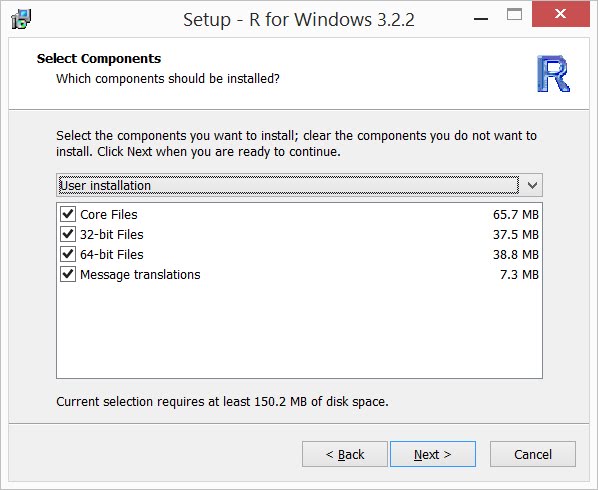
  • Download R 3.X.X (Currently 3.5.2 is available) for Windows [However for this blog post I am using old screenshot related to R 3.2.2 which I saved earlier for creating this blog but being carried away with other work related activities]
  • Run the setup with local admin privileges


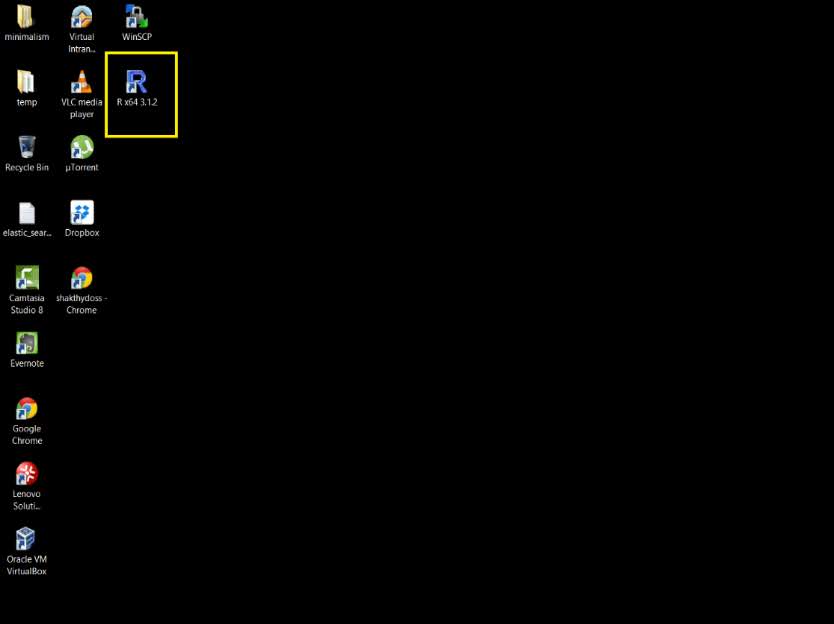
Once installed open R GUI/Console from shortcut created on your desktop or from start menu


Using R Studio for Windows based R installation:

  • Download R Studio from https://www.rstudio.com/products/rstudio/download/
  • Run the installation package
  • Open RStudio to verify the installation.

Just to summarize R Studio GUI these are following section of R Studio:
R Commands can be written in R Script window on right top section of above picture. Eventually these commands can be saved as .R File extension

Also R commands & syntax can be written in R Console window in mid section of above pic. This portion also show results & output/logs

Beside this R Studio include environmental panel, file/packages tab, viewer panel


Read More

Saturday, November 24, 2018

PWA: EPM/Project Server site give administrator access to user or group for project web app

Leave a Comment
To give administrator access to user/group for project web app we need to run following powershell command
Grant-SPProjectAdministratorAccess -Url http://contoso-AppSrv/pwa -UserAccount contoso\john.woods
Read More

SharePoint 2013/2016: The local farm is not accessible. Cmdlets with FeatureDependencyId are not registered

Leave a Comment
While trying to give administrator access to user for an instance of PWA I tried to run following command in sharepoint powershell:
Grant-SPProjectAdministratorAccess -url XXXX user domain\XXXX

I came across following issues:

SharePoint 2013/2016: The local farm is not accessible. Cmdlets with FeatureDependencyId are not registered

Solution:
This happened b/c I tried to launch sharepoint powershell with user part of farm admin group, however I need to work with account similar access to sharepoint central admin app pool as that account requires right on server & databases to run configuration through powershell commands.
so I need to run following command throught account which I used to install my sharepoint farm:
Add-SPShellAdmin -UserName Domain\User


Read More

Sunday, November 4, 2018

Sitecore: How to setup a visual studio solution

Leave a Comment
To setup sitecore visual studio solution we need following steps accordingly:


  1. Create a new MVC solution in Visual Studio
  2. Replace or copy web.config & global.asax files from inetpub->wwwroot->"Sitecore application" folder and paste it to new MVC application created in step 1.
  3. Similarly replace web.config files from View folder same as step 2 into new MVC application created in Step 1
  4. Add reference to following dlls (I mostly create a new folder in MVC solution/application created in step 1 called library and copy paste following files):
    1. Sitecore.Kernel.dll
    2. Sitecore.MVC.dll
    3. Sitecore.MVC.Analytics.dll
  5. Add new view to verify above configuration by using Sitecore intellisense for:
    1. @using Sitecore.MVC
    2. @Html.Sitecore().CurrentItem.Name
Read More

Thursday, November 1, 2018

Add new Publishing target in SiteCore 9

Leave a Comment
Previously in Sitecore 8 we used to add publishing target by following these three steps:

  1. Add new item under Sitecore->System->Publishing Targets
  1. Update Sitecore.config field to add database configuration section under <databases section for new Publishing Target i.e. WebUAE
  1. Add new connection string setting under ConnectionStrings.config for new web database
However while doing so we received following error:
Could not find configuration node: PropertyStoreProvider/store[@name='WebUAE']
solution:
For sitecore 9 we need to add missing nodes as indicated by error under section PropertyStoreProvider:
<store name="WebUSA" prefix="WebUSA" getValueWithoutPrefix="true" singleInstance="true" type="Sitecore.Data.Properties.$(database)PropertyStore, Sitecore.Kernel">      <param ref="dataApis/dataApi[@name='$(database)']" param1="$(name)" />
      <param resolve="true" type="Sitecore.Abstractions.BaseEventManager, Sitecore.Kernel" />
      <param resolve="true" type="Sitecore.Abstractions.BaseCacheManager, Sitecore.Kernel" />
    </store>
But wait, it pops up another error...hmmm Could not find configuration node: eventing/eventQueueProvider/eventQueue[@name='WebUAE']
solution:
Add following node under <eventQueueProvider
<eventQueue name="WebUSA" type="Sitecore.Data.Eventing.$(database)EventQueue, Sitecore.Kernel">
        <param ref="dataApis/dataApi[@name='$(database)']" param1="$(name)" />
        <param ref="PropertyStoreProvider/store[@name='$(name)']" />
      </eventQueue>
This will fix adding new publishing target for sitecore 9.
Happy development
x

Read More